List 사용하다 불편한 내용 정리

👋 들어가기 전

List를 이용해 화면을 그릴 때, 생각보다 불편한 점이 이만 저만이 아니다.
불편하면 또 검색하고 찾고 하는게 이제 슬슬 귀찮아서
이번에 한번 정리해볼려고한다.
iOS 최소 지원버전은 17이상으로 가정한다.
기본은 다음 코드를 기반으로한다.
struct ContentView: View {
  var body: some View {
    List {
      Section(header: Text("섹션 1")) {
        ForEach(0..<10) { number in
          Text("\(number)")
        }
      }

      Section(header: Text("섹션 2")) {
        ForEach(11..<20) { number in
          Text("\(number)")
        }
      }
    }
    .listStyle(.plain)
    .background(.blue)
  }
}
🏁 학습할 내용
- row
- separator 패딩 없애기
- separator 색깔 바꾸기
- RowInset 제거하기
- row간격 주기
- 배경색 색칠하기
- section
- section 간격주기
📏 row
🧹 패딩 없애기

다음과 같이, list안에 padding이 들어가면, separator까지 왼쪽이 말려들어간다.
이 때, 나는 separator를 쭈욱이어가고 싶다.
해결법은 다음과 같다.

바로 alignmentGuide 함수다.
Hstack, VStack, Zstack은 같은 컨테이너에 정의된 기본 alignment에 Content뷰들은 따라가게되는데
특정 뷰에대해, 기본 alignment를 무시하고, 다른 alignment를 줄 때 사용된다.
함수의 첫번째 파라미터는 사용할 alignment를 지정하고, 두번 째 클로저에는 alignment의 기준선 위치를 알려준다.
              .alignmentGuide(.listRowSeparatorLeading) { viewDimensions in
                return -viewDimensions.width
              }
신기하게도 애플에서 listRowSeperatorLeading이라는 HorizontalAlignment가 있고,
왼쪽으로 밀린만큼, -(오른쪽으로) 밀어주면된다.
반대로, seperator를 안쪽으로 밀어 넣고 싶을 때는, 다음과 같이 .listrowInset와 alignmentGuide를
함께쓰면 편하게 쓸 수 있다.

    List {
      ForEach(0..<100) { number in
        demandCard()
          .listRowInsets(EdgeInsets(horizontal: Spacing.sp400))
          .alignmentGuide(.listRowSeparatorTrailing) { d in
            d[.trailing]
          }
          .listRowSeparator(number == 99 ?  .hidden : .visible)
          .listRowSeparatorTint(PoolColor.Separators.opaque)

      }
    }
🎨 separator 색깔 입히기
        Section(header: Text("섹션 1")) {
          ForEach(0..<20) { number in
            Text("\(number)")
          }
        }
        .alignmentGuide(.listRowSeparatorLeading) { viewDimensions in
          return -viewDimensions.width
        }
        .listRowSeparatorTint(.red)
listRowSeparatorTint를 이용하는데 중요한점은 List에 붙히는게 아니라, Content쪽에 붙혀야한다.
여기서는 Section에 붙혔다.

✏️ Row Inset제거하기
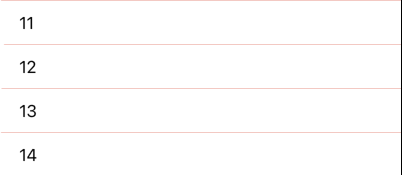
사진을 보면, 숫자들이 자동적으로 왼쪽으로 들여써져있다.
        Section(header: Text("섹션 1")) {
          ForEach(0..<20) { number in
            Text("\(number)")
          }
        }
        .listRowInsets(.init(top: .zero, leading: .zero, bottom: .zero, trailing: .zero))
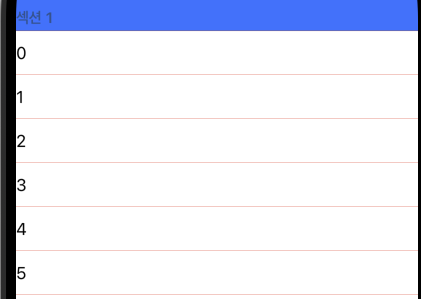
.listRowInsets에서 leading과 trailing값을 0으로 설정하면, 다음과 같이 인셋이 사라지는걸 볼 수 있다.
섹션쪽에 추가하니, Section Header도 영향을 받는걸 볼 수 있다.
⎯ Row 간격 주기
      List {
      ...
      }
      .listRowSpacing(10)
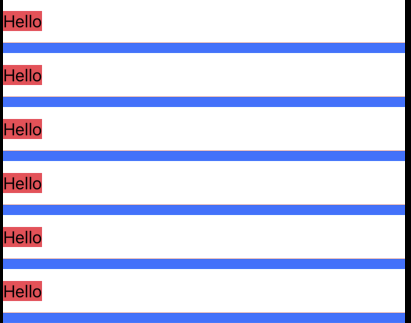
List쪽에, listRowSpacing을 적용하면 다음과 같이 간격이 들어간다.
리스트에 적용하는걸 보면, Section별로 적용할 수는 없는 것 같다.
🎨 배경색 색칠하기
일반적으로, .background를 이용하면, row영역 모두에 색칠되지않아, 자칫 잘못하면
알수 없는 divider가 나오는 것처럼 보인다.
.listRowBackground를 이용하면, 주어진 Row영역을 빈틈없이 채워준다.
@inlinable nonisolated public func listRowBackground<V>(_ view: V?) -> some View where V : View

ex) .listRowBackground(.red)
⭐️ 참고하기 좋은 그림
스택 오버 플로우에 이해하기 쉽게 정리된 그림이 있다.
List(1...100, id: \.self) { item in
    Text("\(item)")
        .padding() // 🟣 comment to remove PURPLE padding
        .background(Color.yellow)
        // .listRowInsets(EdgeInsets()) // 🔵 uncomment to remove BLUE inset
}
// .listStyle(.plain) // 🟢 uncomment to remove all GREEN insets all together
// .contentMargins(<#edge#>, 0, for: .scrollContent) // 🟢 uncomment to customize combination of GREEN insets. (Requires iOS 17)
// .listStyle(.grouped) // 🔴 uncomment to remove RED inset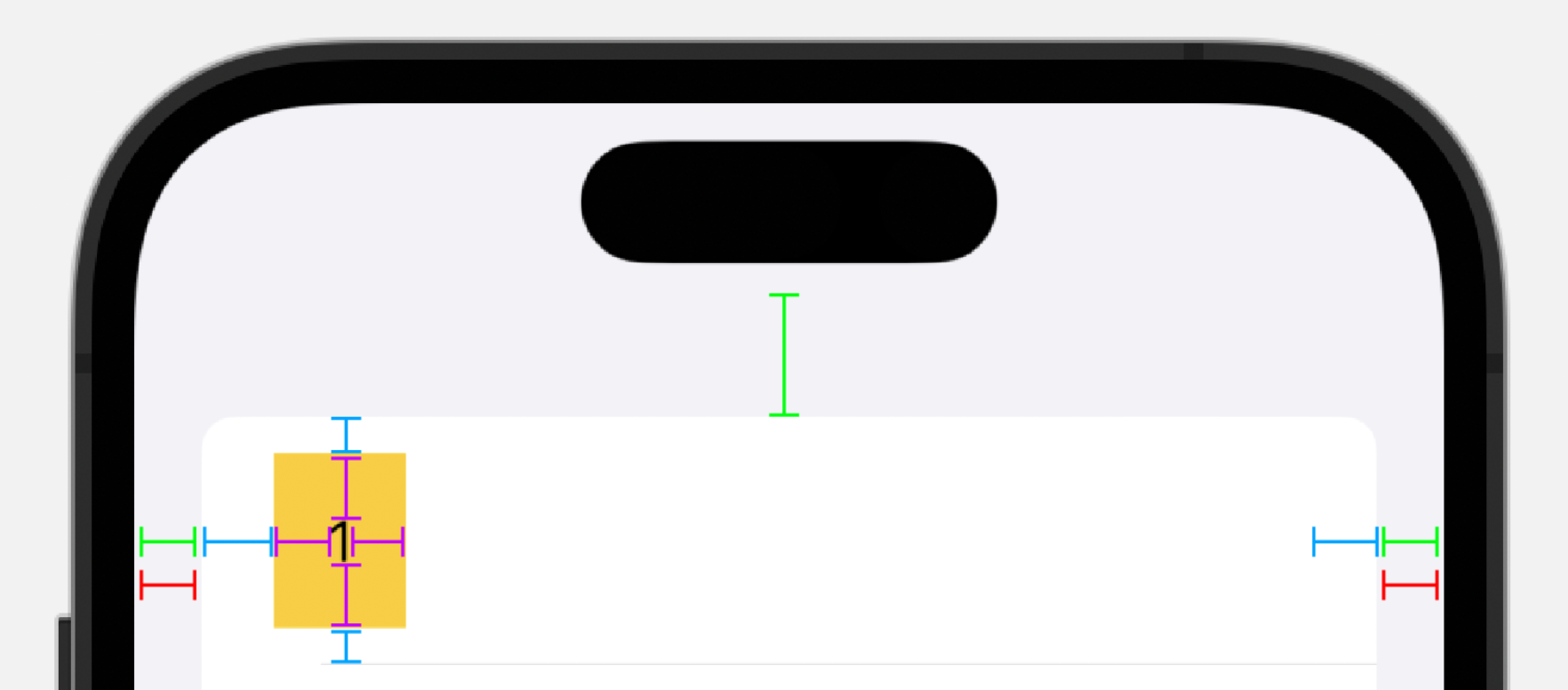
🗃️ Section
⎯ Section 간격 주기
    List {
    ...
    }
    .listSectionSpacing(30)
List쪽에, listSectionSpacing을 적용하면 다음과 같이 간격이 들어간다.
출처
https://developer.apple.com/documentation/swiftui/view/alignmentguide(_:computevalue:)-6y3u2
alignmentGuide(_:computeValue:) | Apple Developer Documentation
Sets the view’s vertical alignment.
developer.apple.com