[WWDC 2023] Wind your way through advanced animations in SwiftUI

🏁 학습할 내용
- Animation phase
- Keyframes
- Tip and tricks
♻️ Animation phases

🧩 역할
정해진 phase를 순환하며 애니메이션을 적용해주는 modifier
🤖 코드 및 결과
1️⃣ phaseAnimator(phase, content, animation)
nonisolated public func phaseAnimator<Phase>(
_ phases: some Sequence,
@ViewBuilder content: @escaping (PlaceholderContentView<Self>, Phase) -> some View,
animation: @escaping (Phase) -> Animation? = { _ in .default }) -> some View where Phase : Equatable- phase: 단계 Sequence
- content: 적용될 container와 현재 phase
- animation: 적용할 애니메이션 default는 spring
    VStack {
      Text("Hello, World!")
        .phaseAnimator([false, true]) { content, phase in
          content
            .foregroundStyle(phase ? .red : .blue)
        } animation: { phase in
            .easeInOut
        }
    }

정해진 phase를 무한히 반복함, 어떨 떄는 한번 phase들을 돌고나면 끝내고 싶음
그 때, trigger파리미터를 넘겨줌
2️⃣ phaseAnimator(phase, trigger , content, animation)
- 파라미터 역할은 모두 같고, trigger는 계속 애니메이션을 실행하지말고, Trigger가 변경됐을 떄만 한번 진행
enum CustomPhase: CaseIterable {
  case `init`
  case mid
  case end

  var scale: CGFloat {
    switch self {
    case .`init`:
      return 2.0
    case .mid:
      return 1
    case .end:
      return 3.0
    }
  }

  var offset: CGFloat {
    switch self {
    case .`init`:
      return -10
    case .mid:
      return 10
    case .end:
      return 10
    }
  }
}

struct SimpleAnimatableDemo: View {
  @State private var trigger: Bool = false

  var body: some View {
    VStack {
      Text("Hello, World!")
        .phaseAnimator(CustomPhase.allCases, trigger: trigger) { content, phase in
          content
            .scaleEffect(phase.scale)
            .offset(y: phase.offset)
        } animation: { phase in
          switch phase {
          case .`init`:
            return .spring
          case .mid:
            return .smooth
          case .end:
            return .easeInOut(duration: 0.5)
          }
        }
        .onTapGesture {
          trigger.toggle()
        }
    }
  }
}
🧩 역할
타이밍과 움직임을 완전히 제어할 수 있는 복잡하고 조직화된 애니메이션을 정의함
🤷 Animation Phase와 다른 점

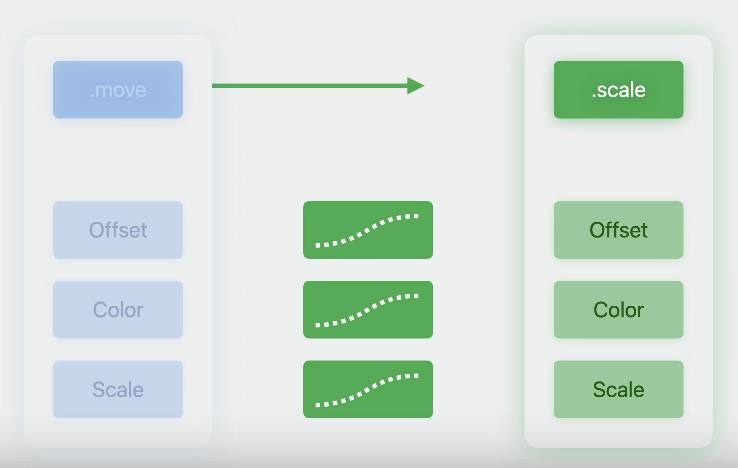
Animation Phase는 Phase에 설정된 모든 프로퍼티는 동시에 애니메이팅된다.
하지만, 만약 각 프로퍼티를 독립적으로 애니메이팅하고 싶다면?? 그 때 사용하는게 Keyframes이다.
✅ 특징

- 키 프레임은 애니메이션 안에서 특정 시간의 값을 정의한다.
- 점은 키프레임을 나타낸다.
- SwiftUI는 키 프레임 사이의 값을 보간한다.
- 키 프레임은 고유 타이밍으로 개별 트랙을 정의해, 여러 가지 효과를 동시에 적용할 수 있다.
🤖 예제 코드
public protocol KeyframeTrackContent<Value> {

    associatedtype Value : Animatable = Self.Body.Value

    associatedtype Body : KeyframeTrackContent

    @KeyframeTrackContentBuilder<Self.Value> var body: Self.Body { get }
}- Keyframe을 정의하기위한 프로토콜, Value는 Animatable을 채택한 값이 들어와야함

- initValue: 초기값
- trigger: 시작 트리거
- content: 적용될 container와 value가 전달됨
- keyframes: value가 전달되며, 원하는 Keyframe을 반환
        VStack {
            Text("!@4214214")
                .keyframeAnimator(initialValue: AnimationValues(), trigger: trigger, content: { content, value in
                    content
                        .rotationEffect(value.angle)
                        .scaleEffect(value.scale)
                        .scaleEffect(y: value.verticalStretch)
                        .offset(y: value.verticalTranslation)
                }, keyframes: { value in

                    KeyframeTrack(\.angle) { // 키프레임이 각 value의 값을 보간
                        LinearKeyframe(.zero, duration: 0.36)
                        SpringKeyframe(.degrees(90), duration: 0.8, spring: .bouncy)
                        SpringKeyframe(.degrees(.zero), duration: 0.8, spring: .bouncy)
                    }


                    KeyframeTrack(\.scale) { // 키프레임이 각 value의 값을 보간
                        LinearKeyframe(1.0, duration: 0.36)
                        SpringKeyframe(1.5, duration: 0.8, spring: .bouncy)
                        SpringKeyframe(1.0, duration: 0.8, spring: .bouncy)
                    }
                })
                .onTapGesture {
                    trigger.toggle()
                }
        }
        .frame(maxWidth: .infinity, maxHeight: .infinity)
- KeyframeTrack을 통해 보간할 값들을 keyPath로 지정
- LinearKeyframe과 SringKeyframe을 이용하여, 해당 키프레임에 변경될 목표값과, duration, 애니메이션 지정
- 현재 애니메이션은, 오른쪽 90도로 꺾이면서, 1.5배 됐다가, 다시 각도와 크기가 복구됨

🧱 종류
1️⃣ Linear Keyframe
- 이전 키 프레임의 벡터 공간을 선형적으로 보간
2️⃣ Spring Keyframe
- 스프링 기능을 사용해 이전 키 프레임의 타깃값을 보간
3️⃣ Cubit Keyframe
- 키 프레임 사이 보간에 베지어 곡선을 이용
- 여러개를 조합해 시퀀스를 만들면 캣멀롬 스플라인과 일치하는 곡선이 나옴
4️⃣ MoveKey Keyframe
- 보간 없이, 바로 이동
같은 뷰에 keyframes 쪽에 다음 형태로 넣어줘보자.
                    KeyframeTrack(\.angle) {
                        CubicKeyframe(.zero, duration: 0.58)
                        CubicKeyframe(.degrees(16), duration: 0.125)
                        CubicKeyframe(.degrees(-16), duration: 0.125)
                        CubicKeyframe(.degrees(16), duration: 0.125)
                        CubicKeyframe(.zero, duration: 0.125)
                    }

                    KeyframeTrack(\.verticalStretch) {
                        CubicKeyframe(1.0, duration: 0.1)
                        CubicKeyframe(0.6, duration: 0.15)
                        CubicKeyframe(1.5, duration: 0.1)
                        CubicKeyframe(1.05, duration: 0.15)
                        CubicKeyframe(1.0, duration: 0.88)
                        CubicKeyframe(0.8, duration: 0.1)
                        CubicKeyframe(1.04, duration: 0.4)
                        CubicKeyframe(1.0, duration: 0.22)
                    }

                    KeyframeTrack(\.scale) {
                        LinearKeyframe(1.0, duration: 0.36)
                        SpringKeyframe(1.5, duration: 0.8, spring: .bouncy)
                        SpringKeyframe(1.0, spring: .bouncy)
                    }

                    KeyframeTrack(\.verticalTranslation) {
                        LinearKeyframe(0.0, duration: 0.1)
                        SpringKeyframe(20.0, duration: 0.15, spring: .bouncy)
                        SpringKeyframe(-60.0, duration: 1.0, spring: .bouncy)
                        SpringKeyframe(0.0, spring: .bouncy)
                    }
우리가 쓴 키프레임을 시각화한걸 살펴보자.
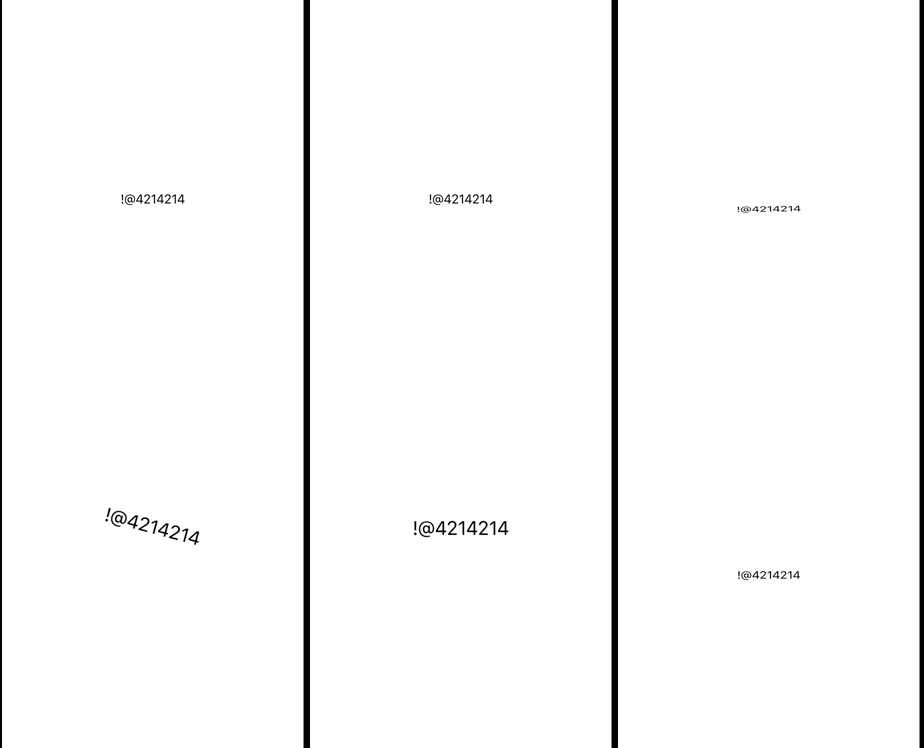

🧐 키 프레임에 수동으로 값을 부여하는 방법
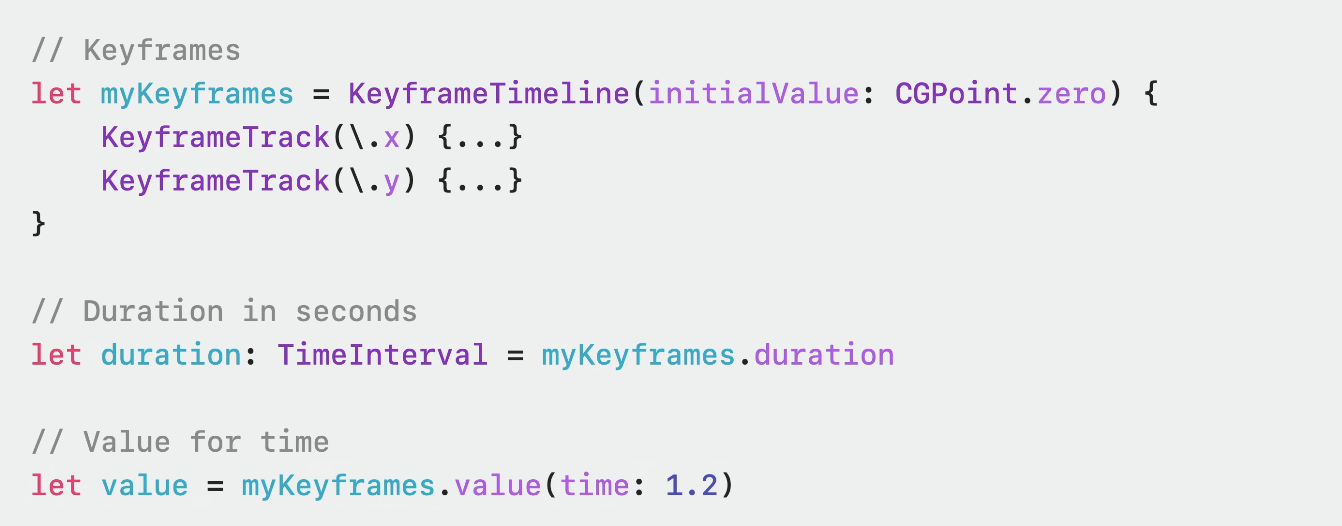
- KeyframeTimeline을 이용하여, 키프레임과 트랙집합을 캡처
- 이후, duration을 가장 긴 트랙의 지속시간으로 설정
- 애니메이션의 범위안에서는 어느 시간의 값도 얻을 수 있음
- 이런걸 이용해면, Swift Chart를 이용해 키프레임을 쉽게 시각화 할 수 있음
⚠️ 주의
- 키프레임은 미리 정의된 애니메이션이다
- 유동적, 상호 작용형 UI가 필요한 상황에서 대체 불가한 애니메이션이다.
- 키프레임은 재생 가능한 비디오 클립과 가깝다
- 얼마든지 제어가 가능하지만, 애니메이션 도중 키프레임을 바꾸는 것에 주의하자.
- 프레임 마다 업게이트가 일어나므로, 비싼 작업은 피하자
📷 Tip and tricks
발표자는 자동 줌인을 통해 코스를 따라가는 카메라 무빙을 원함
이때, 맵킷에서는 키 프레임을 사용해 카메라가 이동함

출처
https://developer.apple.com/videos/play/wwdc2023/10157/
Wind your way through advanced animations in SwiftUI - WWDC23 - Videos - Apple Developer
Discover how you can take animation to the next level with the latest updates to SwiftUI. Join us as we wind our way through animation...
developer.apple.com
https://developer.apple.com/documentation/swiftui/phaseanimator
PhaseAnimator | Apple Developer Documentation
A container that animates its content by automatically cycling through a collection of phases that you provide, each defining a discrete step within an animation.
developer.apple.com