[WWDC2024] Create custom visual effects with SwiftUI

🏁 학습할 내용
- Scroll effect
- Color treatments
- View transitions
- Text transitions
- Metal shaders
📜 Scroll effect
스크롤 시, 적용할 수 있는 다양한 effect를 살펴보자
🛞 ScrollTransition
스크롤 시, 컨텐츠가 나타나고 사라질 때 적용할 전환 단계사이에 애니메이션을 적용
1️⃣ 파라미터
configuration
- ScrollTransitionConfiguration 타입
- 전환의 동작 종류를 정의, 스크롤 위치 변화에 대한 보간을 어떻게 애님에이션을 할 지
- .animated(_:): 불연속적 애니메이션
- .interactive(timeCurve: ...): 연속적 애니메이션
- .identity: 전환 애니메이션 사용 X
axis
- Axis 타입?
- 전환 기준 축
- nil일 경우, 가장 안쪽의 scrollView 축을 따라감
topLeading / bottomTrailing
- ScrollTransitionConfiguration 타입
- topLeading은 들어올 떄, bottomTrailing은 나갈 때 configuration을 지정
- 만약 첫번 째, configuration 파라미터를 이용하면, topLeading == bottomTrailing는 설정
transition closure
- 파라미터로 EmptyVisualEffect 와 ScrollTransitionPhase가 들어옴
- EmptyVisualEffect는 효과를 적용할 수 있는 래퍼 역할 다양한 effect modifer을 사용할 수 있음
- ScrollTransitionPhase는 스크롤 전환 상태를 알려줌
- 상태는, .topLeading, .identity, .bottomTrailing이 존재
- phase.isIdentity = 현재 content가 완전히 보이는 지
- phase.value = 연속적으로, -1.0(topLeanig) -> 0.0(identity) -> 1.0(bottomTrailing)
🤖 예제 코드
1️⃣ 원형 캐러셀

    ScrollView(.horizontal) {
      LazyHStack(spacing: 22) {
        ForEach(colors, id: \.self) { color in
          RoundedRectangle(cornerRadius: 10)
            .fill(color)
            .frame(width: 200, height: 100)
            .scrollTransition { content, phase in
              content
                .rotationEffect(.degrees(phase.value * 2))
                .offset(y: phase.isIdentity ? 0 : 8)
            }
        }
      }
      .scrollTargetLayout()
    }
    .contentMargins(.horizontal, 44)
    .scrollTargetBehavior(.paging)
2️⃣ Parallax Effect

    ScrollView(.horizontal) {
      LazyHStack(spacing: 22) {
        ForEach(colors, id: \.self) { color in
          ZStack {
            Circle()
              .fill(color)
              .scrollTransition(axis: .horizontal) { content, phase in
                content
                  .offset(x: phase.value * -250)
              }
          }
          .containerRelativeFrame(.horizontal)
          .clipShape(RoundedRectangle(cornerRadius: 32))
        }
      }
      .scrollTargetLayout()
    }
    .contentMargins(.horizontal, 32)
    .scrollTargetBehavior(.paging)
✨ VisualEffect
픽셀 기반 효과를 제어할 수 있게 해주는 인터페이스
1️⃣ 파라미터
effect closure
- 파라미터로 EmptyVisualEffect 와 Geometry Proxy 가 들어옴
- GeometryProxy를 이용해, 다양한 좌표 기준으로 effect 적용가능
2️⃣ hueRoation
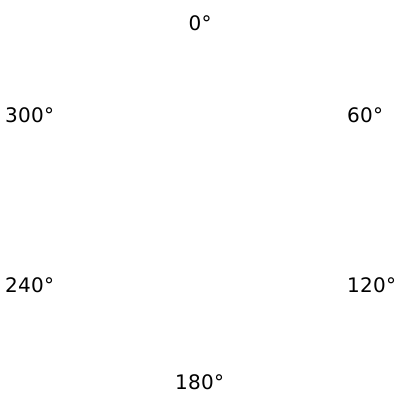
뷰에 hue rotation effect를 적용함, HSL(색상, 채도, 명도) 색상 모델의 Hue(색상 각도)를 회전
Saturation(채도) 나 Lightness(명도)는 변하지 않음
스크롤 시, 변화는 y offset을 이용하여 hueRotation을 적용해보자.

    ScrollView(.vertical) {
      ForEach(0..<100) { _ in
        RoundedRectangle(cornerRadius: 24)
            .fill(.purple)
            .containerRelativeFrame(.horizontal)
            .frame(height: 100)
            .visualEffect({ content, proxy in
                content
                    .hueRotation(Angle(degrees: proxy.frame(in: .global).origin.y / 10))

            })
      }
    }
🎨 Color treatments
📘 이전에 제공하고 있는 다양한 색깔관련 인터페이스

- Gradient
- Color Control
- Blend Mode
🥅 Mesh Gradient

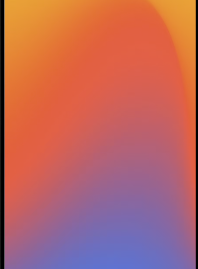

iOS18부터, 제공되는 새로운 Gradient
동적 배경을 적용하거나, 표면에 시각적 구분을 추가할 때 유용함
🧐 원리

메시 그레디언트는 점의 그리드 형태로 구성됨
각 점은, 각 색상과 연관되어 있고, 이 그리드 내 색상 사이를 보간하여, 색을 채운다.
여기서 점의 위치를 원하는 대로 옮겨, 아름다운 색상효과를 만들어냄
원리를 설명할 때 중요한 개념은 바로 SIMD2다.
SIMD는 Single Instruction, Multiple Data의 약자로
하나의 명령어로 여러 데이터를 동시에 처리하는 기술
여기서, SIMD2는 2개의 스칼라를 값을 담는 벡터를 의미한다.
즉 2쌍으 데이터 구조를 동시에 계산한다.
MeshGradient는 각 점의 위치를 2차원으로 나타내기때문에, SIMD2를 이용해 빠르게 계산된다.
import simd

let a = SIMD2<Float>(1.0, 2.0)
let b = SIMD2<Float>(3.0, 4.0)

// 벡터 덧셈
let c = a + b  // SIMD2<Float>(4.0, 6.0)

// 스칼라 곱
let d = a * 2  // SIMD2<Float>(2.0, 4.0)

// 내적(dot product)
let dot = simd_dot(a, b)  // 1*3 + 2*4 = 11
🤖 예제 코드
MeshGradient(
    width: 3,
    height: 3,
    points: [
        [0.0, 0.0], [0.5, 0.0], [1.0, 0.0],
        [0.0, 0.5], [0.9, 0.3], [1.0, 0.5],
        [0.0, 1.0], [0.5, 1.0], [1.0, 1.0]
    ],
    colors: [
        .black,.black,.black,
        .blue, .blue, .blue,
        .green, .green, .green
    ]
)
🎉 View transitions
🧩 역할
Transistion은 변경된 내용과 변경 사항이 발생한 이유에 대한 정보를 제공할 떄 도움이 된다.
♻️ 커스텀 Transition 만들기
Transition 프로토콜을 채택한 후, body에서 여러가지 effect를 적용
이 때, phase(동작 시점)를 통해 effect를 분기할 수 있음
struct Twirl: Transition {
    func body(content: Content, phase: TransitionPhase) -> some View {
        content
            .scaleEffect(phase.isIdentity ? 1 : 0.5)
            .opacity(phase.isIdentity ? 1 : 0)
            .blur(radius: phase.isIdentity ? 0 : 10)
            .rotationEffect(
                .degrees(
                    phase == .willAppear ? 360 :
                        phase == .didDisappear ? -360 : .zero
                )
            )
            .brightness(phase == .willAppear ? 1 : 0)
    }
}
💬 Text Transitions
이번 영상 Top2로 어려웠던 것 같다. 한번 실제로 써보면 진짜 좋은 UI/UX를 제공할 수 있는 좋은 기술인 것 같다.
🧱 구성 요소
- TextRenderer
- Text.Layout
✏️ TextRenderer
🧩 역할
- View 트리 전체에서, SwiftUI 텍스트가 그려지는 방식을 커스텀할 수 있는 강력한 프로토콜
- 애니메이션 역시 적용할 수 있음
🔠 Text.Layout
🧩 역할
- 텍스트의 전체 레이아웃 정보
- 위치, line, 글리프 메트릭 정보 등..
TextKit2 개념이 조금 들어가는데, 여기서 간단하게만 정리하고 가자.
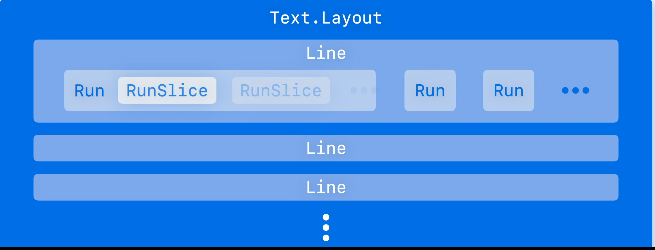
🧱 구성 요소
- TypographicBounds: 텍스트 레이아웃 전체의 bounds
- origin, width, ascent 등...
- Line: 한 줄을 나타내는 구조
- "Hello "(bold) "SwiftUI" + " World"
- Line 1: "Hello SwiftUI"
- Line 2: "World"
- "Hello "(bold) "SwiftUI" + " World"
- Run: 한 Line 안에서 동일한 스타일이 적용된 연속적인 글리프 묶음
- 스타일 변경점 마다 끊어진 조각
- "Hello " → run 1 (regular)
- "SwiftUI" → run 2 (bold)
- " World" → run 3 (regular)
- 스타일 변경점 마다 끊어진 조각
- RunSlice: Run의 일부 조각을 잘라낸 것
- 즉 Run 내부의 특정 문자범위를 더 세밀하기 조작하기 위한 구조
- "SwiftUI"
- S | w | i | f | t | U | I
- 즉 Run 내부의 특정 문자범위를 더 세밀하기 조작하기 위한 구조
| 구조 | 의미 | 단위 | 사용 목적 |
| TypographicBounds | 전체 기하 정보 | 전체 텍스트 | 정확한 크기 계산, 정렬 |
| Line | 텍스트의 한 줄 | 줄 단위 | 줄바꿈 처리, 줄별 효과 |
| Run | 스타일이 동일한 연속 구간 | 스타일 단위 | bold/italic 등 스타일별 처리 |
| RunSlice | Run의 일부 | 글리프 단위 | 글자별 애니메이션/강조 |
"Hello SwiftUI World"

Text.Layout
 ├─ TypographicBounds (텍스트 전체 크기)
 ├─ Line 1
 │    ├─ Run 1: "Hello "
 │    ├─ Run 2: "SwiftUI" (bold)
 │    └─ Run 3: " World"
 │
 └─ … (다음 줄)


 Run 2: [ S w i f t U I ]
          \______/
          RunSlice
🤖 실습 코드
▶️ 목표
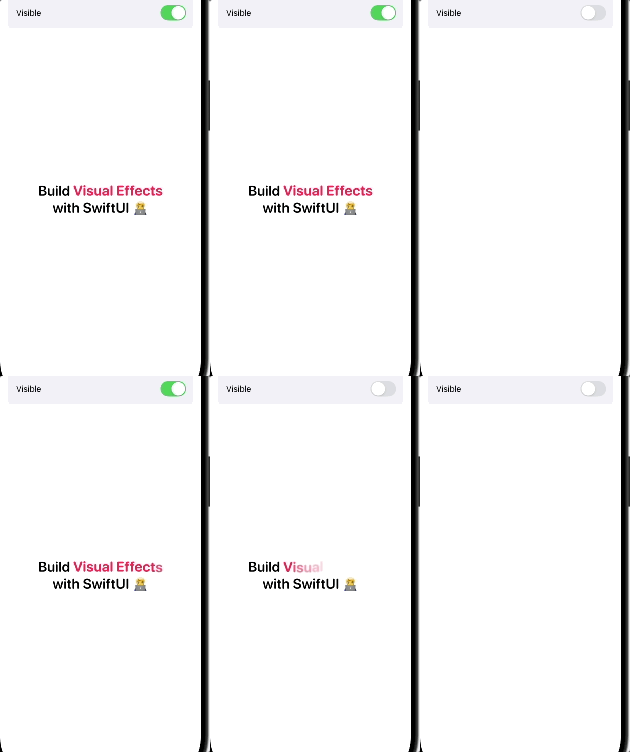
아래와 같은 Text Transition을 만드는게 목표
사라지거나 나타낼 때, 차례대로 나타나면서 트랜지션을 적용하는 것
📊 구현 단계
- 커스텀 Text Render
- Transition 채택
- TextAttribute 구현채 만들기
- 뷰에 적용하기
🖨️ 커스텀 Text Render 구현하기
랜더러는 Text가 어떻게 그려질 지 정의한다.
- 핵심은 이전에 배운 Animatable 프로토콜도 함께 채택해서, 보간될 값을 정의한다.
- 여기서는, 애니메이션 재생 시간이 된다.
- 또한 draw함수에서 실질적으로 그려질 때, 효과를 적용한다.
struct AppearanceEffectRenderer: TextRenderer, Animatable {
var elementDuration: TimeInterval // 글자 하나가 애니메이션되는 시간
var totalDuration: TimeInterval // 전체 글자 수 포함한 전체 시간
// spring 애니메이션: 글자의 y 이동 효과
var spring: Spring {
.snappy(duration: elementDuration - 0.05, extraBounce: 0.4)
}
// Animatable 연동
// elapsedTime이 애니메이션되는 값
var animatableData: Double {
get { elapsedTime }
set { elapsedTime = newValue }
}
init(elapsedTime: TimeInterval, elementDuration: Double = 0.4, totalDuration: TimeInterval) {
self.elapsedTime = min(elapsedTime, totalDuration)
self.elementDuration = min(elementDuration, totalDuration)
self.totalDuration = totalDuration
}
func draw(layout: Text.Layout, in context: inout GraphicsContext) {
for run in layout.flattenedRuns { // run = 동일 스타일의 텍스트 묶음
if run[EmphasisAttribute.self] != nil { // EmphasisAttribute 일 때
// 각 글자간의 애니메이션 시작 딜레이 계산
let delay = elementDelay(count: run.count)
for (index, slice) in run.enumerated() {
let timeOffset = TimeInterval(index) * delay
// index별로 아직 도달하지 않은 경우 0 → elementDuration 범위로 계산
let elementTime = max(0, min(elapsedTime - timeOffset, elementDuration))
var copy = context
draw(slice, at: elementTime, in: ©) // 각 글자를 개별 애니메이션
}
} else {
// EmphasisAttribute가 없으면 전체 run을 단순 페이드인
var copy = context
copy.opacity = UnitCurve.easeIn.value(at: elapsedTime / 0.2)
copy.draw(run)
}
}
}
// EmphasisAttribute 일 때, 적용할 애니메이션
func draw(_ slice: Text.Layout.RunSlice, at time: TimeInterval, in context: inout GraphicsContext) {
// Calculate a progress value in unit space for blur and
// opacity, which derive from `UnitCurve`.
let progress = time / elementDuration
let opacity = UnitCurve.easeIn.value(at: 1.4 * progress)
let blurRadius =
slice.typographicBounds.rect.height / 16 *
UnitCurve.easeIn.value(at: 1 - progress)
// The y-translation derives from a spring, which requires a
// time in seconds.
let translationY = spring.value(
fromValue: -slice.typographicBounds.descent,
toValue: 0,
initialVelocity: 0,
time: time)
context.translateBy(x: 0, y: translationY)
context.addFilter(.blur(radius: blurRadius))
context.opacity = opacity
context.draw(slice, options: .disablesSubpixelQuantization)
}
func elementDelay(count: Int) -> TimeInterval {
let count = TimeInterval(count)
let remainingTime = totalDuration - count * elementDuration
return max(remainingTime / (count + 1), (totalDuration - elementDuration) / count)
}
}
✨ Transition 채택
위에서 만든 랜더러 지정과 함께, 해당 트랜잭션에 설정될 애니메이션을 linear 덮어씌운다.
이후, 밖에서는 이 트랜지션만 적용해주면 끝
struct TextTransition: Transition {

    static var properties: TransitionProperties {
        TransitionProperties(hasMotion: true)
    }

    func body(content: Content, phase: TransitionPhase) -> some View {
        let duration = 0.9
        let elapsedTime = phase.isIdentity ? duration : 0

        let renderer = AppearanceEffectRenderer(
            elapsedTime: elapsedTime,
            totalDuration: duration
        )

        content.transaction { transaction in
            if !transaction.disablesAnimations {
                // elapsedTime이 선형으로 증가하도록 지정
                transaction.animation = .linear(duration: duration)
            }
        } body: { view in
            view.textRenderer(renderer)
        }
    }
}- properties는 커스텀 Transition이 가지고 있는 “특성(정보)“을 SwiftUI에게 알려주는 역할
✅ TextAttribute 구현체 만들기
뷰에 표시하고, Render의 draw함수에서 지정한 TextLayout의 Run이 해당 TextAttribute를
갖고 있는 지 확인할 때 씀
텍스트 랜더러가 조회하는 값이라고 한다.
struct EmphasisAttribute: TextAttribute {}
🎨 뷰에 적용하기
#Preview("Text Transition") {
@Previewable @State var isVisible: Bool = true
VStack {
GroupBox {
// 토글을 켜고 끄면 isVisible이 true/false로 애니메이션되며
// 아래의 텍스트가 Transition을 통해 나타남/사라짐
Toggle("Visible", isOn: $isVisible.animation())
}
Spacer()
if isVisible {
// "Visual Effects" 텍스트에 커스텀 속성을 부여함
// 이 속성을 가진 텍스트는 AppearanceEffectRenderer에서
// 글자 단위 애니메이션 대상이 됨
let visualEffects = Text("Visual Effects")
.customAttribute(EmphasisAttribute()) // 애니메이션 대상(TextAttribute) 표시
.foregroundStyle(.pink)
.bold()
// 최종 조합된 텍스트
Text("Build \(visualEffects) with SwiftUI 🧑💻")
.font(.system(.title, design: .rounded, weight: .semibold))
.frame(width: 250)
// TextTransition 적용
.transition(TextTransition())
}
Spacer()
}
.multilineTextAlignment(.center)
.padding()
}🎨 Metal shaders
사실 이번 영상에서 가장 충격을 받은 파트다..
메탈 진지하게 시작해볼까 고민 중...
💬 소개
iOS 17부터 SwiftUI에는 더욱 세밀한 제어를 제공하는 강력한 그래픽 API가 있다.
바로 셰이더다
🧩 역할
- 셰이더는 다양한 렌더링 효과를 기기의 GPU에서 바로 계산하는 작은 프로그램
- 성능은 유지하면서 나만의 놀라운 시각 효과를 만들 수 있다.
✨ 특징
- GPU 프로그래밍 특성으로, swift로 셰이더를 만들 수는 없음
- Metal Shading Language로 작성됨
✅ 사용
- Metal을 이용해 Shader 파일을 만든다.
- view.layerEffect 함수를 통해 shader를 적용한다.
- SwiftUI View의 각 픽셀에 대한 shader를 GPU에서 실행
🤖 예제 코드 분석

UIKit부터 Metal까지 내려가는 흐름를 살펴보면, 결국 Metal에서 사용될 계산 파라미터를
계속 어디서 생성해서 전달하는 형태, 터치 좌표는 UIKit을 통해서, 진행시간은 keyframeAnimator를
통해 전달하고 있다.
Gesture
extension View {
  func onPressingChanged(_ action: @escaping (CGPoint?) -> Void) -> some View {
    modifier(SpatialPressingGestureModifier(action: action))
  }
}

struct SpatialPressingGestureModifier: ViewModifier {
  var onPressingChanged: (CGPoint?) -> Void

  @State var currentLocation: CGPoint?

  init(action: @escaping (CGPoint?) -> Void) {
    self.onPressingChanged = action
  }

  func body(content: Content) -> some View {
    let gesture = SpatialPressingGesture(location: $currentLocation)

    content
      .gesture(gesture)
      .onChange(of: currentLocation, initial: false) { _, location in
        onPressingChanged(location)
      }
  }
}

struct SpatialPressingGesture: UIGestureRecognizerRepresentable {
  final class Coordinator: NSObject, UIGestureRecognizerDelegate {
    @objc
    func gestureRecognizer(
      _ gestureRecognizer: UIGestureRecognizer,
      shouldRecognizeSimultaneouslyWith other: UIGestureRecognizer
    ) -> Bool {
      true
    }
  }

  @Binding var location: CGPoint?

  func makeCoordinator(converter: CoordinateSpaceConverter) -> Coordinator {
    Coordinator()
  }

  func makeUIGestureRecognizer(context: Context) -> UILongPressGestureRecognizer {
    let recognizer = UILongPressGestureRecognizer()
    recognizer.minimumPressDuration = 0
    recognizer.delegate = context.coordinator

    return recognizer
  }

  func handleUIGestureRecognizerAction(
    _ recognizer: UIGestureRecognizerType, context: Context
  ) {
    switch recognizer.state {
    case .began:
      location = context.converter.localLocation
    case .ended, .cancelled, .failed:
      location = nil
    default:
      break
    }
  }
}
Ripple(SwiftUI)
/// A modifer that performs a ripple effect to its content whenever its
/// trigger value changes.
struct RippleEffect<T: Equatable>: ViewModifier {
  var origin: CGPoint
  var duration: TimeInterval { 3 }
  var trigger: T

  init(at origin: CGPoint, trigger: T) {
    self.origin = origin
    self.trigger = trigger
  }

  func body(content: Content) -> some View {
    let origin = origin
    let duration = duration

    content.keyframeAnimator(
      initialValue: 0,
      trigger: trigger
    ) { view, elapsedTime in
      view.modifier(RippleModifier(
        origin: origin,
        elapsedTime: elapsedTime,
        duration: duration
      ))
    } keyframes: { _ in
      MoveKeyframe(0)
      LinearKeyframe(duration, duration: duration)
    }
  }
}

/// A modifier that applies a ripple effect to its content.
struct RippleModifier: ViewModifier {
  var origin: CGPoint

  var elapsedTime: TimeInterval

  var duration: TimeInterval

  var amplitude: Double = 12
  var frequency: Double = 15
  var decay: Double = 8
  var speed: Double = 1200

  func body(content: Content) -> some View {
    let shader = ShaderLibrary.Ripple(
      .float2(origin),
      .float(elapsedTime),

      // Parameters
      .float(amplitude),
      .float(frequency),
      .float(decay),
      .float(speed)
    )

    let maxSampleOffset = maxSampleOffset
    let elapsedTime = elapsedTime
    let duration = duration

    content.visualEffect { view, _ in
      view.layerEffect(
        shader,
        maxSampleOffset: maxSampleOffset,
        isEnabled: 0 < elapsedTime && elapsedTime < duration
      )
    }
  }

  var maxSampleOffset: CGSize {
    CGSize(width: amplitude, height: amplitude)
  }
}
Ripple(Metal)
// Insert #include <metal_stdlib>
#include <SwiftUI/SwiftUI.h>
using namespace metal;

[[ stitchable ]]
half4 Ripple(
    float2 position,
    SwiftUI::Layer layer,
    float2 origin,
    float time,
    float amplitude,
    float frequency,
    float decay,
    float speed
) {
    // The distance of the current pixel position from `origin`.
    float distance = length(position - origin);
    // The amount of time it takes for the ripple to arrive at the current pixel position.
    float delay = distance / speed;

    // Adjust for delay, clamp to 0.
    time -= delay;
    time = max(0.0, time);

    // The ripple is a sine wave that Metal scales by an exponential decay
    // function.
    float rippleAmount = amplitude * sin(frequency * time) * exp(-decay * time);

    // A vector of length `amplitude` that points away from position.
    float2 n = normalize(position - origin);

    // Scale `n` by the ripple amount at the current pixel position and add it
    // to the current pixel position.
    //
    // This new position moves toward or away from `origin` based on the
    // sign and magnitude of `rippleAmount`.
    float2 newPosition = position + rippleAmount * n;

    // Sample the layer at the new position.
    half4 color = layer.sample(newPosition);

    // Lighten or darken the color based on the ripple amount and its alpha
    // component.
    color.rgb += 0.3 * (rippleAmount / amplitude) * color.a;

    return color;
}
최종 적용 View(SwiftUI)
마지막에 영상에서 강조한 점은, RippleModifer쪽에 상수로 박혀있는 다양한 값들이 있다.
- amplitude
- frequency 등..
이런 값들을 찾을 때는, 디버그 UI를 가는걸 만들어서 찾아내는 방식을 강조한다.
아래 사진을 참고, 왼쪽은 실제 효과, 오른쪽은 디버그 UI를 나타낸다.


#Preview("Ripple") {
  @Previewable @State var counter: Int = 0
  @Previewable @State var origin: CGPoint = .zero

  VStack {
    Spacer()

    Image("palm_tree")
      .resizable()
      .aspectRatio(contentMode: .fit)
      .clipShape(RoundedRectangle(cornerRadius: 24))
      .onPressingChanged { point in
        if let point {
          origin = point
          counter += 1
        }
      }
      .modifier(RippleEffect(at: origin, trigger: counter))
      .shadow(radius: 3, y: 2)

    Spacer()
  }
  .padding()
}

#Preview("Ripple Editor") {
  @Previewable @State var origin: CGPoint = .zero
  @Previewable @State var time: TimeInterval = 0.3
  @Previewable @State var amplitude: TimeInterval = 12
  @Previewable @State var frequency: TimeInterval = 15
  @Previewable @State var decay: TimeInterval = 8

  VStack {
    GroupBox {
      Grid {
        GridRow {
          VStack(spacing: 4) {
            Text("Time")
            Slider(value: $time, in: 0 ... 2)
          }
          VStack(spacing: 4) {
            Text("Amplitude")
            Slider(value: $amplitude, in: 0 ... 100)
          }
        }
        GridRow {
          VStack(spacing: 4) {
            Text("Frequency")
            Slider(value: $frequency, in: 0 ... 30)
          }
          VStack(spacing: 4) {
            Text("Decay")
            Slider(value: $decay, in: 0 ... 20)
          }
        }
      }
      .font(.subheadline)
    }

    Spacer()

    Image("palm_tree")
      .resizable()
      .aspectRatio(contentMode: .fit)
      .clipShape(RoundedRectangle(cornerRadius: 24))
      .modifier(RippleModifier(
        origin: origin,
        elapsedTime: time,
        duration: 2,
        amplitude: amplitude,
        frequency: frequency,
        decay: decay
      ))
      .shadow(radius: 3, y: 2)
      .onTapGesture {
        origin = $0
      }

    Spacer()
  }
  .padding(.horizontal)
}
출처
https://developer.apple.com/videos/play/wwdc2024/10151/
Create custom visual effects with SwiftUI - WWDC24 - Videos - Apple Developer
Discover how to create stunning visual effects in SwiftUI. Learn to build unique scroll effects, rich color treatments, and custom...
developer.apple.com
https://developer.apple.com/documentation/swiftui/view/scrolltransition(_:axis:transition:)
scrollTransition(_:axis:transition:) | Apple Developer Documentation
Applies the given transition, animating between the phases of the transition as this view appears and disappears within the visible region of the containing scroll view.
developer.apple.com
https://developer.apple.com/documentation/swiftui/visualeffect
VisualEffect | Apple Developer Documentation
Visual Effects change the visual appearance of a view without changing its ancestors or descendents.
developer.apple.com
https://developer.apple.com/documentation/swiftui/transition
Transition | Apple Developer Documentation
A description of view changes to apply when a view is added to and removed from the view hierarchy.
developer.apple.com
https://developer.apple.com/documentation/swiftui/textrenderer
TextRenderer | Apple Developer Documentation
A value that can replace the default text view rendering behavior.
developer.apple.com