커스텀 DynamicScrollTabVIew 만들기

👋 들어가기 전
먼저 결과 이미지를 먼저 보자.
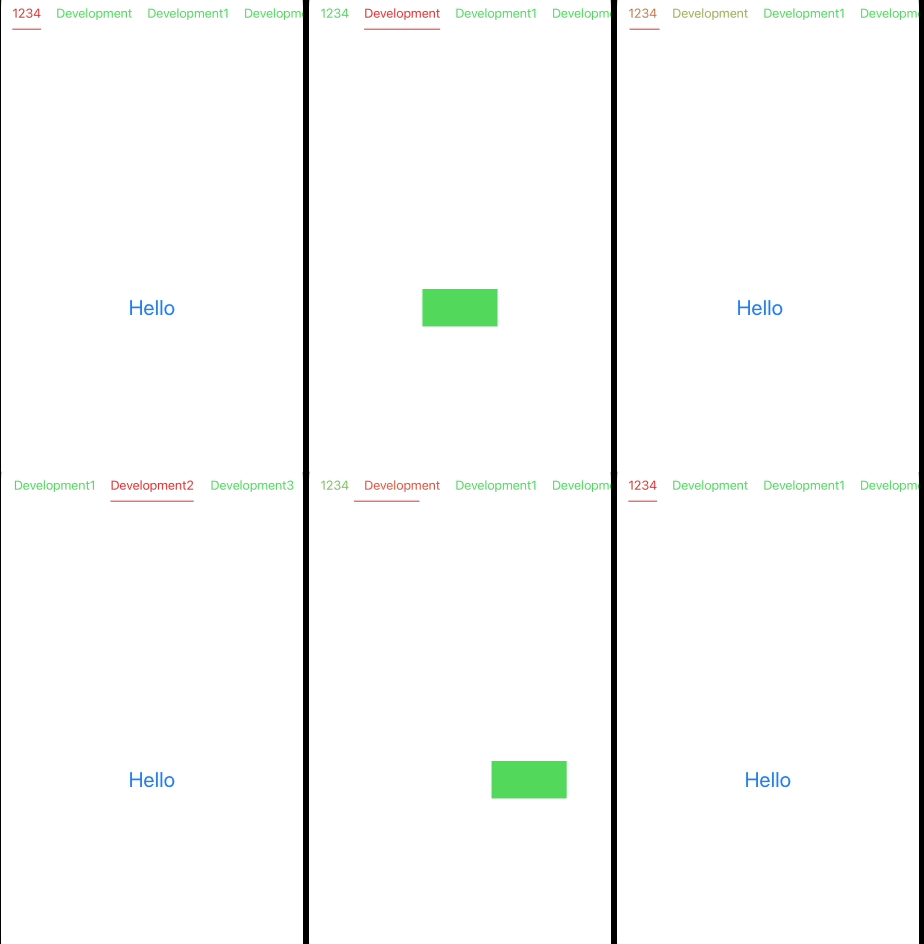
구현을 위해 필요한 동작을 먼저 정리해보자.
- 탭 글자에 맞게, indicator의 너비가 변해야함
- 다른 탭을 누르면, 해당 탭에 포커싱됨과 동시에 그 탭에 맞느 Content View가 보여야함
- Content View에서 Swipe하면, 인디케이도 동기화되어 움직여야함
- Content View의 종류는 모두 다를 수 있음
각 동작 구현을 위해 필요한 사전 개념은 다음과 같다.
- scrollTargetLayout: https://hamp.tistory.com/198
- @resultBuilder: https://hamp.tistory.com/285
- PreferenceKey: https://hamp.tistory.com/289
- ID: https://hamp.tistory.com/287
이제 각 동작을 구현해보자.
🏁 준비
1️⃣ 모델
ForEach와, .scrollPosition, .id 등에 사용될 ID값
Dynamic Width와 offset을 위한 size, minX를 갖고 있다.
public extension ScrollTabView {
  struct TabModel: Identifiable {
    public var id: String // title 역할
    var size: CGSize = .zero
    var minX: CGFloat = .zero

    public  init(title: String) {
      self.id = title
    }
  }
}
2️⃣ PreferenceKey
가장 가까운 scrollView를 기준으로 현재뷰의 frame정보를 상위 뷰에 전달.
import SwiftUI

public struct ScrollKey: PreferenceKey {
  public static var defaultValue: CGRect = .zero
  public static func reduce(value: inout CGRect, nextValue: () -> CGRect) {
    value = nextValue()
  }
}

public extension View {

  ///  axis에 해당하는 가장 가까운 scrollView를 기준으로 Rect를 받습니다.
  /// - Parameters:
  ///   - axis: 기준 축
  ///   - completion: CGRect를 전달
  /// - Returns: View
  func didScroll(
    axis: Axis = .horizontal,
    _ completion: @escaping (CGRect) -> Void
  ) -> some View {
    self
      .overlay {
        GeometryReader {
          let rect = $0.frame(in: .scrollView(axis: axis))

          Color.clear
            .preference(key: ScrollKey.self, value: rect)
            .onPreferenceChange(ScrollKey.self, perform: completion)
        }
      }
  }
}
3️⃣ linearInterpolation
선형보간법, 이번 구현의 핵심 로직이다.
바로 스크롤에 따라 자연스럽게 indicator의 width와 postion을 보간해준다.
public extension CGFloat {
  /// 선형보간
  /// - Parameters:
  ///   - inputRange: 입력 범위(x)
  ///   - outputRange: 출력 범위(y)
  /// - Returns: 보간 결과
  func linearInterpolated(
    inputRange: [Self],
    outputRange: [Self]
  ) -> Self {
    let xc = self
    let length = inputRange.count - 1

    if xc <= inputRange[0] {
      return outputRange[0]
    }

    /*
     (yc − y₀)⁄(xc − x₀) = (y₁ − y₀)⁄(x₁ − x₀)
     우리는 yc를 구해야함
    */

    for index in 1 ... length {
      let x1 = inputRange[index - 1]
      let x2 = inputRange[index]

      let y1 = outputRange[index - 1]
      let y2 = outputRange[index]

      if xc <= inputRange[index] {
        let yc = y1 + ((y2 - y1) / (x2 - x1)) * (xc - x1)
        return yc
      }
    }

    // Input Range의 최대값을 xc가 초과 시,
    return outputRange[length]
  }
}
4️⃣ AnyViewArrayBuilder
밖에서, 다양한 뷰로 전달하더라도, 모두 표시할 수 있게 AnyView의 배열 형태로 바꿔주는 객체
import SwiftUI

@resultBuilder
public struct AnyViewArrayBuilder {
  public static func buildBlock(_ components: AnyView...) -> [AnyView] {
    components
  }

  public static func buildExpression<V: View>(_ expression: V) -> AnyView {
    AnyView(expression)
  }
}
🍯 프로퍼티
public struct ScrollTabView: View {
  private let selectionColor: Color
  private let defaultColor: Color
  private let contents: [AnyView]
  private let isEnableTabScroll: Bool

  @State private var tabs: [ScrollTabView.TabModel]
  @State private var activatedTab: String
  @State private var activatedTabID: String? // 탭을 눌렀을 때, 스크롤 포지션에 바인딩 될 변수
  @State private var activatedViewID: String? // 스크롤을 통해 현재 뷰가 바꼈을 때 감지하기위한 변수 activatedViewID

  @State private var progress: CGFloat = .zero

  init(
    tabs: [ScrollTabView.TabModel],
    selectionColor: Color,
    defaultColor: Color,
    isEnableTabScroll: Bool = true,
    @AnyViewArrayBuilder builder: @escaping () -> [AnyView]
  ) {
    self.tabs = tabs
    self.activatedTab = tabs[0].id
    self.selectionColor = selectionColor
    self.defaultColor = defaultColor
    self.isEnableTabScroll = isEnableTabScroll
    self.contents = builder()
  }

  ...

}
⭐️ Tab 구현하기
1. 탭을 눌렀을 때 총 3가지를 바꿔준다.
- activatedTab = 현재 가리키는 탭 변수
- activatedTabID = 탭을 눌렀을 때, 스크롤 포지션에 바인딩 될 변수
- activatedViewID = 스크롤을 통해 현재 뷰가 바꼈을 때 감지하기위한 변수
2. Text에 .didScroll을 통해, TabModel에 size와 minX를 갱신하고 있다.
3. dynamicIndicator를 보면 위에서 말한 보간법을 통해 , offset과 width를 갱신하고 있다.
 private func tabBarView() -> some View {
    ScrollView(.horizontal) {
      HStack(spacing: 20) {
        ForEach($tabs) { $tab in
          Button(action: {
            withAnimation(.snappy) {
              activatedTab = tab.id
              activatedTabID = tab.id
              activatedViewID = tab.id
            }
          }) {
            Text(tab.id)
              .padding(.vertical, 12)
              .foregroundStyle(activatedTab == tab.id ? Color.red : Color.green)
              .contentShape(.rect)
          }
          .didScroll {
            tab.size = $0.size
            tab.minX = $0.minX
          }
        }
      }
    }
    .scrollPosition( // activatedTabID 변경 시, 스크롤 + 중앙정렬
      id: .init(
        get: {
          return activatedTabID
        },
        set: { _ in
        }
      ),
      anchor: .center
    )
    .overlay(alignment: .bottom) {
      dynamicIndicator()
    }
    .safeAreaPadding(.horizontal, 15)
    .scrollIndicators(.hidden)
    .scrollDisabled(!isEnableTabScroll)
  }

  private func dynamicIndicator() -> some View {
    ZStack(alignment: .leading) {
      Color.clear
        .frame(height: 1.5) // ZStack Width를 끝까지 확장하기 위한 눈속임

      let inputRange = tabs.indices.compactMap { return CGFloat($0) }
      let widthRange = tabs.compactMap { return $0.size.width }
      let positionRange = tabs.compactMap { return $0.minX }

      let indicatorWidth = progress.linearInterpolated(
        inputRange: inputRange,
        outputRange: widthRange
      ) // xc = progress에서 시작

      let indicatorPosition = progress.linearInterpolated(
        inputRange: inputRange,
        outputRange: positionRange
      ) // xc = progress에서 시작

      Rectangle()
        .fill(.red)
        .frame(width: indicatorWidth, height: 1.5)
        .offset(x: indicatorPosition)
    }
  }
🧩 MainView 정의하기
1. LazyHStack에 .didScroll을 달아서, 현재 화면에서 Scroll시, progress를 갱신
2. activatedViewID가 바뀔 때, Tab쪽도 동기화
3. AnyViewArrayBuilder를 통해 contents를 [AnyView]로 추상화시켜, ForEach를 통해
실제 안에는 서로 다른 뷰에도, 무리없이 노출 시킨다.
  private func contentView() -> some View {
    GeometryReader { proxy in
      let size = proxy.size

      ScrollView(.horizontal) {
        LazyHStack(spacing: .zero) {
          ForEach(0..<contents.count) { index in
            contents[index]
              .id(tabs[index].id)
              .frame(width: size.width, height: size.height)
              .contentShape(.rect)
          }
        }
        .scrollTargetLayout()
        .didScroll {
          progress = -$0.minX / size.width
        }
      }
      .scrollPosition(id: $activatedViewID)
      .scrollIndicators(.hidden)
      .scrollTargetBehavior(.paging)
      .onChange(of: activatedViewID) { _, newValue in
        if let newValue = newValue { // 스크롤로 뷰가 갱신됐을 때, Tab쪽 갱신
          withAnimation(.snappy) {
            activatedTab = newValue
            activatedTabID = newValue
          }
        }
      }
    }
  }
🏋️ View 전체 코드
//
//  ScrollTabView.swift
//  Pool
//
//  Created by yongbeomkwak on 10/26/25.
//

import CoreModule
import SwiftUI

public struct ScrollTabView: View {
  private let selectionColor: Color
  private let defaultColor: Color
  private let contents: [AnyView]
  private let isEnableTabScroll: Bool

  @State private var tabs: [ScrollTabView.TabModel]
  @State private var activatedTab: String
  @State private var activatedTabID: String? // 탭을 눌렀을 때, 스크롤 포지션에 바인딩 될 변수
  @State private var activatedViewID: String? // 스크롤을 통해 현재 뷰가 바꼈을 때 감지하기위한 변수
  @State private var progress: CGFloat = .zero

  init(
    tabs: [ScrollTabView.TabModel],
    selectionColor: Color,
    defaultColor: Color,
    isEnableTabScroll: Bool = true,
    @AnyViewArrayBuilder builder: @escaping () -> [AnyView]
  ) {
    self.tabs = tabs
    self.activatedTab = tabs[0].id
    self.selectionColor = selectionColor
    self.defaultColor = defaultColor
    self.isEnableTabScroll = isEnableTabScroll
    self.contents = builder()
  }

  public var body: some View {
    VStack {
      tabBarView()
      contentView()
    }
  }
}

extension ScrollTabView {
  private func tabBarView() -> some View {
    ScrollView(.horizontal) {
      HStack(spacing: 20) {
        ForEach($tabs) { $tab in
          Button(action: {
            withAnimation(.snappy) {
              activatedTab = tab.id
              activatedTabID = tab.id
              activatedViewID = tab.id
            }
          }) {
            Text(tab.id)
              .padding(.vertical, 12)
              .foregroundStyle(activatedTab == tab.id ? Color.red : Color.green)
              .contentShape(.rect)
          }
          .didScroll {
            tab.size = $0.size
            tab.minX = $0.minX
          }
        }
      }
    }
    .scrollPosition( // activatedTabID 변경 시, 스크롤 + 중앙정렬
      id: .init(
        get: {
          return activatedTabID
        },
        set: { _ in
        }
      ),
      anchor: .center
    )
    .overlay(alignment: .bottom) {
      dynamicIndicator()
    }
    .safeAreaPadding(.horizontal, 15)
    .scrollIndicators(.hidden)
    .scrollDisabled(!isEnableTabScroll)
  }

  private func dynamicIndicator() -> some View {
    ZStack(alignment: .leading) {
      Color.clear
        .frame(height: 1.5) // ZStack의 Width를 끝까지 확장하기 위한 눈속임

      let inputRange = tabs.indices.compactMap { return CGFloat($0) }
      let widthRange = tabs.compactMap { return $0.size.width }
      let positionRange = tabs.compactMap { return $0.minX }

      let indicatorWidth = progress.linearInterpolated(
        inputRange: inputRange,
        outputRange: widthRange
      ) // xc = progress에서 시작

      let indicatorPosition = progress.linearInterpolated(
        inputRange: inputRange,
        outputRange: positionRange
      ) // xc = progress에서 시작

      Rectangle()
        .fill(.red)
        .frame(width: indicatorWidth, height: 1.5)
        .offset(x: indicatorPosition)
    }
  }

  private func contentView() -> some View {
    GeometryReader { proxy in
      let size = proxy.size

      ScrollView(.horizontal) {
        LazyHStack(spacing: .zero) {
          ForEach(0..<contents.count) { index in
            contents[index]
              .id(tabs[index].id)
              .frame(width: size.width, height: size.height)
              .contentShape(.rect)
          }
        }
        .scrollTargetLayout()
        .didScroll {
          progress = -$0.minX / size.width
        }
      }
      .scrollPosition(id: $activatedViewID)
      .scrollIndicators(.hidden)
      .scrollTargetBehavior(.paging)
      .onChange(of: activatedViewID) { _, newValue in
        if let newValue = newValue { // 스크롤로 뷰가 갱신됐을 때, Tab쪽 갱신
          withAnimation(.snappy) {
            activatedTab = newValue
            activatedTabID = newValue
          }
        }
      }
    }
  }
}

#Preview {
  ScrollTabView(
    tabs: [
      .init(title: "1234"),
      .init(title: "Development"),
      .init(title: "Development1"),
      .init(title: "Development2"),
      .init(title: "Development3 "),
      .init(title: "Development4")
    ],
    selectionColor: .red,
    defaultColor: .green
  ) {
    Text("Hello")
        .font(.title)
        .foregroundColor(.blue)
    Rectangle()
        .fill(.green)
        .frame(width: 100, height: 50)
    Circle()
        .fill(.red)
        .frame(width: 40, height: 40)
    Text("Hello")
        .font(.title)
        .foregroundColor(.blue)
    Rectangle()
        .fill(.green)
        .frame(width: 100, height: 50)
    Circle()
        .fill(.red)
        .frame(width: 40, height: 40)
  }
}
출처
https://ko.wikipedia.org/wiki/%EB%B3%B4%EA%B0%84%EB%B2%95
보간법 - 위키백과, 우리 모두의 백과사전
위키백과, 우리 모두의 백과사전. 수치해석학의 수학 분야에서 보간법(補間法) 또는 내삽(內揷, interpolation)은 알려진 데이터 지점의 고립점 내에서 새로운 데이터 지점을 구성하는 방식이다. 공
ko.wikipedia.org
https://www.youtube.com/watch?v=sCK0W39nVEk